http://webmail.cnhiindiana.com/
http://webmail.cnhiindiana.com/
This document is designed to walk you through using the web-based email access for communitynews. If you have further questions, contact your local technical services personnel.
|
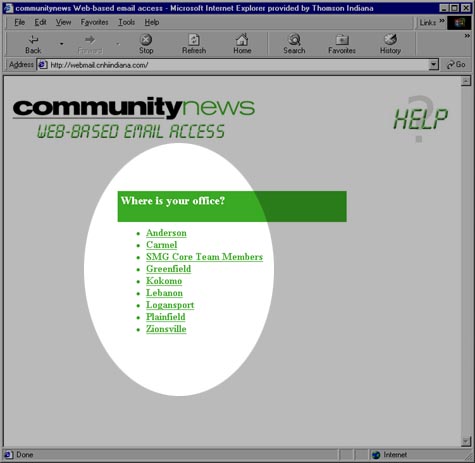
Point your browser to http://webmail.cnhiindiana.com/. From here, choose the location where your office is. |
|
|
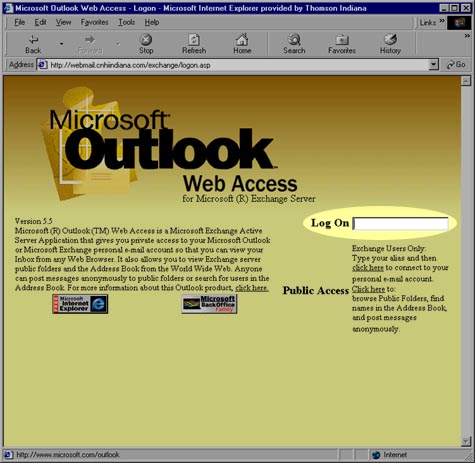
At the next screen, you need to enter the alias for your mailbox, which should be your first initial followed by last name (i.e. – Bob Dole would be bdole). |
|
|
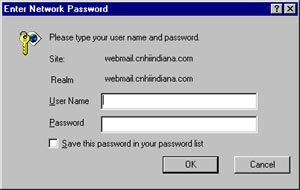
You will then be prompted for a username and password. This will be assigned to your by your local technical staff. You should always remember this password. Your username will most likely be first initial followed by last name (see previous example). Enter the information and click OK. It is not recommended that you use the "Save this password in your password list" option. |
|
|
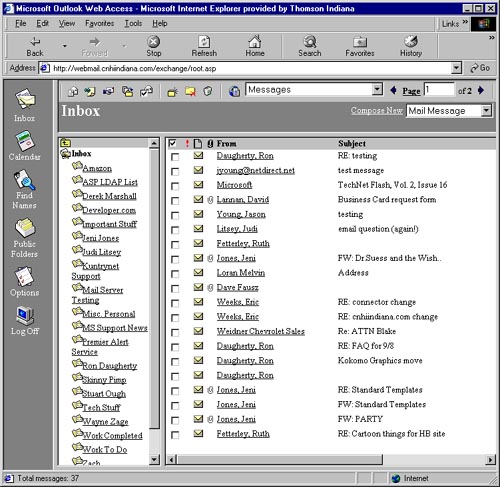
You should now see the full Outlook window. |
|
|
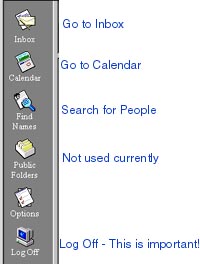
Along the left-hand side you will see a few icons in a toolbar. Click Inbox to view your mail. Click Calendar to view your calendar. Use Find Names to look up phone numbers and other information in the Global Address List. ALWAYS click Log Off when leaving web mail. |
|
|
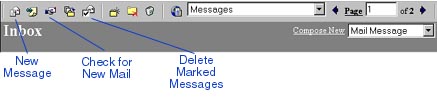
Along the top you will see more icons. The important ones are labeled in the image to the right. You can also use the drop-down menu on the right to compose new items. When new messages arrive, you will not see them automatically if you leave the window open. Periodically, click the ‘Check for New Mail’ button to view new messages (they will appear in bold print). |
|
|
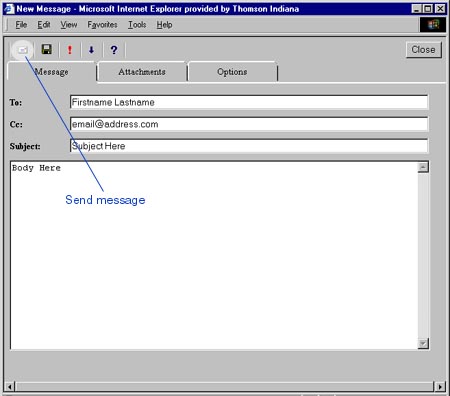
Creating a new message with webmail is very similar to creating new messages on other email clients. When finished composing the message, click the small envelope at the upper left corner of the window. To cancel the message without sending, click the close button in the upper right. |
|
|
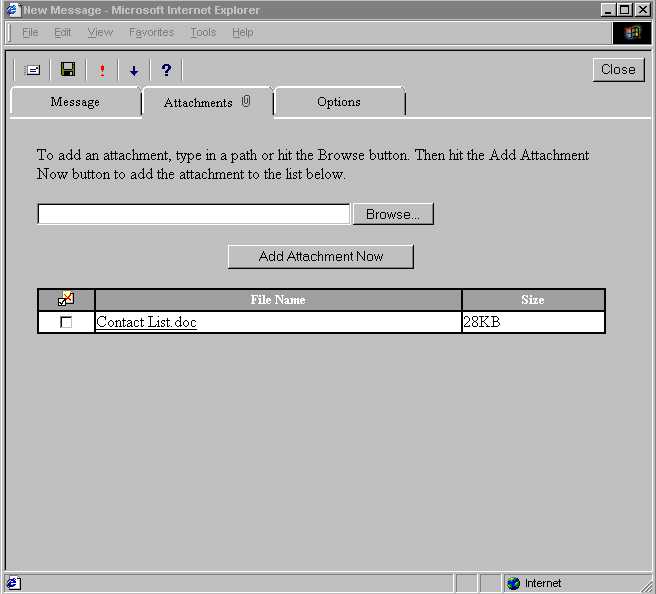
To add attachments to your messages, click the Attachments tab on your new message window. Use the Browse button to find the file. Once the filename and path are in the field, click Add Attachments Now. You will then see it listed in the table at the bottom. When finished, use the tabs to edit your message or click the envelope to send the message. |
|